
Set up an easybell line in The-Y CRM
You want to answer your landline number through easybell in the CRM, share calls across your team and call out from the CRM – with the number you already have, or with a new one? This page shows step by step how to connect an easybell SIP trunk to the phone system built into The-Y CRM. You call in the browser, with a SIP app or on a desk phone.
Contents: Values at a glance · 1. What for · 2. What you need · 3. In the easybell portal · 4. Line in The-Y CRM · 5. Number and target · 6. Caller ID number · 7. Test call · 8. Common errors · 9. Costs · Technical details
The values for easybell at a glance
For everyone who already knows how it works. Each field is explained in section 4.
| Field in the CRM | Value |
|---|---|
| Provider | easybell – fills in server, port and country code for you |
| SIP server | sip.easybell.com (Austria and Germany) |
| Port | 5060 (UDP) – not 5061 |
| SIP user / login | the SIP user name from my.easybell (Telefonanschluss → Verbindungen → detail view) |
| SIP password | the SIP password from my.easybell – not the password you use to sign in to my.easybell |
| Country code | 43 Austria · 49 Germany |
| Emergency calls on this line | “Automatic (recommended)” |
| Caller ID number | leave empty – or your easybell number with +, see Caller ID number |
| Register with the provider | on |
| Outbound proxy | none (there is no such field in the CRM, it isn't needed) |
| Phone number (“Numbers” tab) | international with +, e.g. +43 1 … |
The menu names in my.easybell are quoted in German, as easybell shows them in its German-language help (“Telefonanschluss” = phone connection, “Verbindungen” = connections).
1. What for: your landline number via easybell in the CRM
easybell is an internet telephony provider in Austria and Germany. At easybell you get a line (SIP trunk) with a phone number:
- Your existing landline number: you move it from your current provider to easybell (number porting). According to easybell this is free of charge.
- A new number: easybell offers local numbers for all area codes.
You connect this line to The-Y CRM. Calls then ring in the browser, in a SIP app or on a desk phone, you share them across your team (group call, menu, queue, voicemail) and call out from the CRM. If nobody answers, the caller can, for example, press a key to get a WhatsApp message (“Press 1 for WhatsApp”).
For Austria we recommend easybell: the line is tested with The-Y CRM, the CRM fills in server and port by itself, and according to easybell there is no minimum contract term.
2. What you need
- A SIP trunk at easybell with at least one phone number (Austria or Germany). Don't have one yet? See section 3.
- An account with The-Y CRM (crm.the-y.at). Any plan works, including Free. Free has limits: 200 outgoing call minutes per month and 2 simultaneous calls.
- The “Manage settings” permission (admin) in the CRM.
- To call in the browser: a headset, or a microphone and speakers. SIP apps and desk phones work too (see desk phones).
How many voice channels? One voice channel is enough for one call at a time. easybell requires at least 2. With Free, 2 are enough, because Free allows at most 2 calls at the same time anyway; with Cloud Pro up to 10 work.
You don't need to open any ports in your office for easybell: the line connects from our phone system in Vienna to easybell. Your browser, app or desk phone only connects to the CRM.
3. Step by step in the easybell portal
- No SIP trunk yet? Order it online from easybell: easybell.at/sip-trunks (Austria) or easybell.de/sip-trunks (Germany). Choose a new number there, or state that you are bringing your existing number. If activation or porting takes longer, start with email or web chat in The-Y CRM in the meantime – both work right away.
- Sign in to my.easybell: my.easybell.com – easybell's customer portal.
- Open the credentials: Telefonanschluss → Verbindungen and expand the detail view of your connection (your SIP trunk). It shows the SIP user name (“SIP-Benutzername”) and the SIP password (“SIP-Passwort”).
- Check the number: at easybell, your phone number must belong to this connection. If calls don't arrive later, check in my.easybell under “Telefonanschluss” or ask easybell.
- Keep the portal open – you will enter user name and password in the CRM in a moment.
4. Step by step in The-Y CRM: line with the easybell preset
There are two ways to the “New line” window:
- Directly: Settings → Phone → Provider & numbers → Provider (line) → “Add line” → choose easybell under “Provider”. Choose the provider first: the CRM then fills in server, port and country code (43), but never overwrites anything you have already typed.
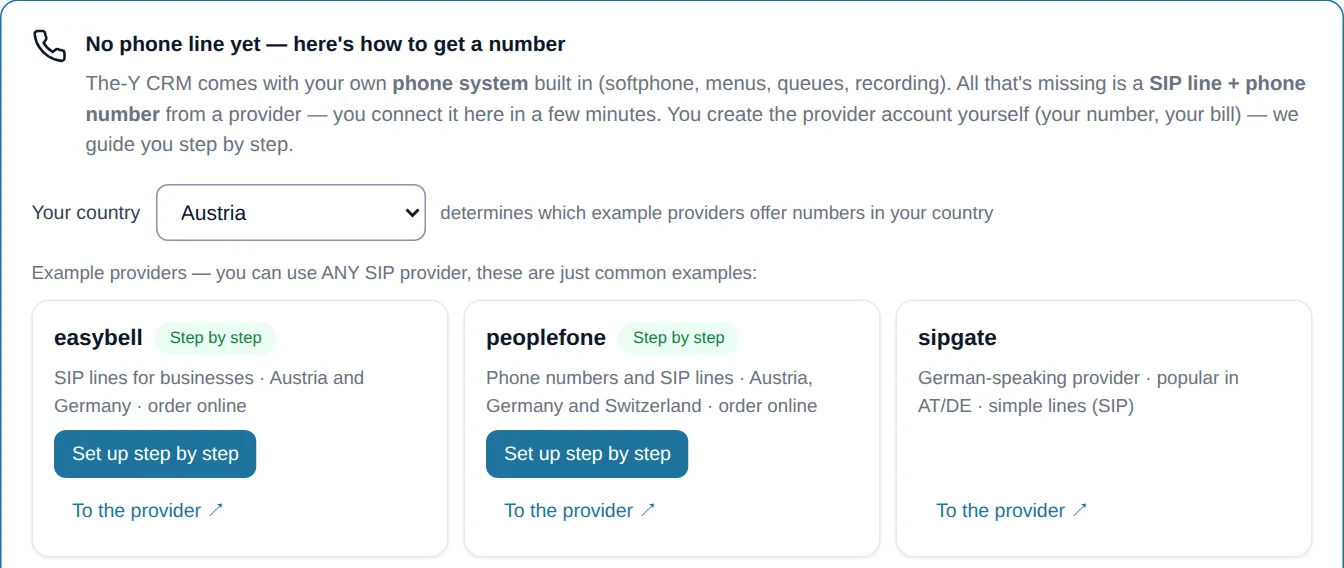
- Via the provider overview (as long as there is no line yet): Settings → Phone → Overview → “Your country” (Austria or Germany) → for easybell, “Set up step by step”. The country code then matches your country.
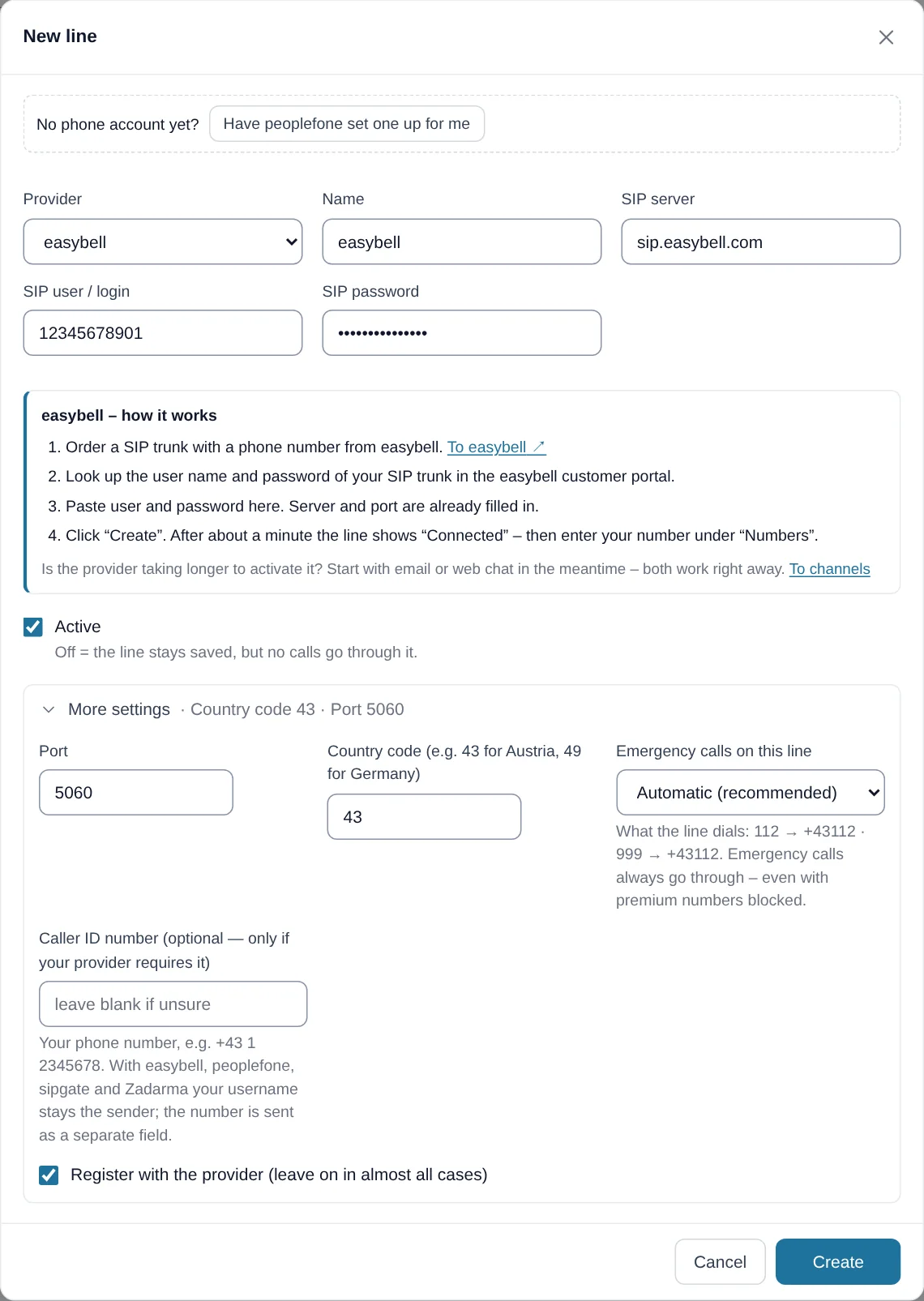
With easybell, the window shows the steps “easybell – how it works”. You don't need the peoplefone box at the top of the window for easybell. Fill in the fields like this (port, country code, emergency calls, caller ID number and “Register with the provider” are under “More settings”):
| Field | What to enter | Note |
|---|---|---|
| Provider | easybell | fills in server, port and country code |
| Name | e.g. easybell or easybell Vienna | your choice, required |
| SIP server | sip.easybell.com | already filled in – leave it. Required. |
| SIP user / login | the SIP user name from my.easybell | best to copy and paste, required |
| SIP password | the SIP password from my.easybell | not your my.easybell login. Stored encrypted and not shown again. |
| Active | on | |
| Port | 5060 | leave as is. With 5061 the CRM shows a hint (see Common errors). |
| Country code | 43 for Austria | 49 for Germany. When you dial 0664 …, the CRM turns it into +43 664 …. |
| Emergency calls on this line | “Automatic (recommended)” | Below it, you see what the line dials, e.g. “112 → +43112”. |
| Caller ID number | leave empty | or your easybell number – read section 6 first |
| Register with the provider | on | already ticked – please leave it on |
Then click “Create”. If something is missing, the note appears right at the field. The CRM says “… saved. The phone system picks it up within a few seconds.”
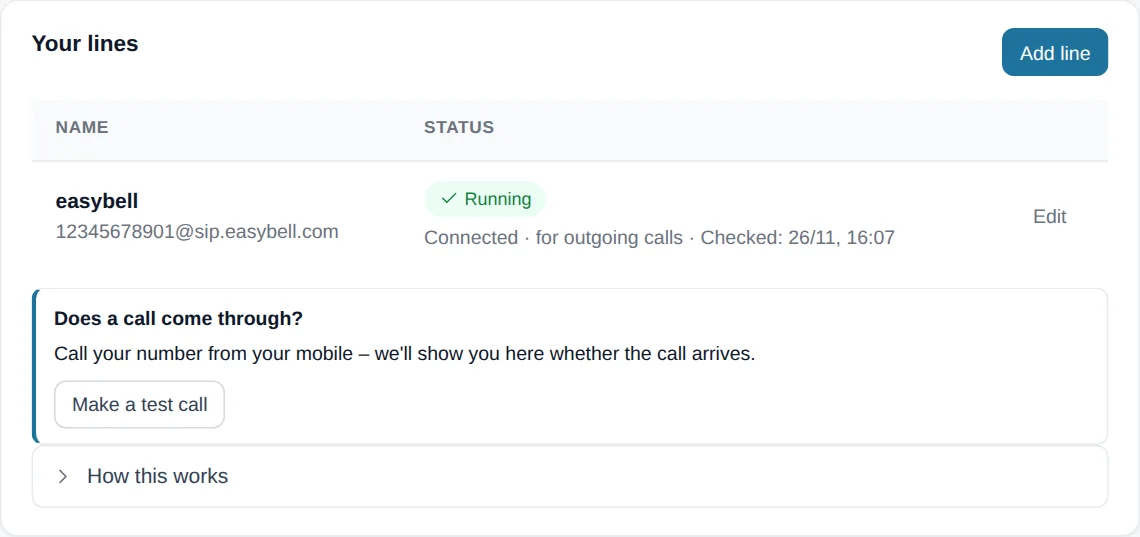
Check: does it say “Connected”?
The line now appears in the list “Your lines”. After about a minute the “Status” column should say “Running” with “Connected” below it. The CRM checks every minute by itself.
| Shown | Meaning |
|---|---|
| Connected | easybell has accepted the registration. All good. |
| Connecting … | Registration is in progress. |
| Not in the phone system yet | The line is being applied. Wait a moment. |
| Not checked yet | There is no result yet. |
| Not connected | easybell rejects the line or does not answer. See Common errors. |
| for outgoing calls | Your outgoing calls use this line. |
| Checked: … | Time of the last check. |
If it doesn't say “Connected” after a minute, open the line with “Edit” and click “Check now” at the bottom of the window: the CRM registers the line again and checks right away. If it still doesn't work, “Stuck? We'll set it up with you – free of charge.” appears – one click on “Yes, please help me” is enough. We only get details about the account and the error, never passwords.
5. Add your phone number and choose a target
First: an extension (if there isn't one yet)
For a call to ring anywhere, everyone who should answer needs an extension. A new account doesn't have one yet.
- Settings → Phone → Extensions & devices → Extensions.
- “Add for everyone in the team” → “Continue”. Everyone gets an extension from
100upwards. Or add a single one with “Add extension”. - The phone in the browser (bottom right) signs in with it by itself. It must say “Registered”. If it says “Off here”, untick “Don’t sign in the phone in this browser” under Calls → My phone. The browser must be allowed to use the microphone.
Then: the phone number and where calls go
- Settings → Phone → Provider & numbers → Numbers (“Numbers – where do calls go?”).
- Click “Add number” and in the window, under “Phone number (international, with +)”, enter your easybell number, e.g.
+43 1 …. If you type it nationally with0, the CRM suggests the right format (“Use …”). - Under “Label (optional)”, e.g.
easybell– the label later appears in the call list next to every call to this number. - Click “Create”. The new number takes over the target of your main number, or your own extension. If there is neither, it says “Hang up” with a yellow note – then you choose the target yourself.
- The same window now asks “Where do calls to this number go?” – choose the target and click “Save”:
- one person: “Extension (agent)” and the extension, e.g.
100 - several people: “Group call” – you create groups under Who answers? → Group calls, easiest with “Add group call” and “Everyone in the team (new people too)” under “Who rings?”. Set “If nobody answers” to a mailbox, so no call gets lost.
- other targets: menu (IVR), queue, phone hours (opening hours), voicemail or forwarding to a mobile. The phone assistant builds ready-made call routes.
- one person: “Extension (agent)” and the extension, e.g.
Several easybell numbers on one line: add each number separately and give it its own target. The CRM recognises the dialled number when easybell sends it with the country code (e.g. 43… or +43…). According to easybell this is the default (“with country code and without leading zeros”) – so leave the number format at easybell as it is. To be honest: we have not yet checked several numbers on one easybell line ourselves. If the CRM doesn't recognise the dialled number, the target of the topmost active number applies (⭐ “Default without number detection”).
See the whole path: Call route & hours → Call route shows number → target as a picture, and the Overview shows “How a call flows” with hints if something is missing.
6. Caller ID number: which number people see
There are two ways. The first one suits most people.
Way A (default): leave the field empty, set the number at easybell
- In the CRM, “Caller ID number” stays empty. The CRM only identifies itself to easybell with your SIP user name.
- You set which number people see in my.easybell: Telefonanschluss → open your connection in the connection overview (“Verbindungsübersicht”) → in the “Konfiguration” section click “Ändern” → “Rufnummernanzeige (CLIP)” (number display).
- There, for example, choose “Benutzerdefinierte Rufnummer anzeigen” (show a custom number) and “Standard” (your main number) – or “Rufnummer unterdrücken” (withhold number) if you want to call anonymously. Then click “Übernehmen” (apply).
Way B: enter the number in the CRM (P-Asserted-Identity)
- In the CRM, on the line “Edit” → “More settings” → “Caller ID number”: your easybell number in international format with
+, e.g.+43 1 2345678→ “Save”. The CRM then sends your SIP user name as the sender and the number as a separate field (P-Asserted-Identity) – the way easybell recommends it for Asterisk. - In my.easybell under “Rufnummernanzeige (CLIP)” (same path as above) choose “Geräteabhängige Rufnummernanzeige” (device-dependent number display) and under “Wählen Sie das SIP-Feld mit CLIP” (choose the SIP field with CLIP) select P-Asserted-Identity. Click “Übernehmen” – if easybell asks, confirm the legal notes.
- A number from another provider (not at easybell): easybell only shows it if you prove that it belongs to you – that is what the rules in Austria require. Ask easybell about it.
- One number per line: the caller ID number applies to the whole line. The CRM currently does not send a separate extension number per employee.
- Several lines: in the phone, choose under “Call as” which line you call through. When you call a customer back from the call list or a conversation, the phone uses the number they reached you on. More in Several lines.
7. Test call
- Incoming: below the line (Provider & numbers → Provider (line)), at “Does a call come through?”, click “Make a test call” and call your easybell number from your mobile. The CRM shows whether the call arrives. The browser rings at the extension or group from section 5 – answer and talk briefly. Both sides must hear each other.
- Outgoing: in the phone at the bottom right, type your mobile number into “Number/extension” and click “Call”. Your mobile should show the number from section 6.
- Call list: both calls are listed under Calls. The incoming one says “to +43 1 … · easybell” – the dialled number with its label.
- Keys (optional): set a key menu (Announcements & menus → Announcements & key menus) as the number's target, call and press a key – the key must lead to the chosen target.
+43112. Check with easybell which address is stored for emergency calls from your number – only then do emergency services know where to go. And please do not call an emergency number to test.8. Common errors and what helps
The line says “Not connected”
The CRM then says: “The provider rejects the line or does not answer. Check server and port (usually 5060), username and password.”
- Most common cause: wrong credentials. Often the CRM contains the email address and password you use to sign in to my.easybell. What's needed are the SIP user name and SIP password from Telefonanschluss → Verbindungen (detail view of the connection).
- Compare the values exactly – no spaces at the start or end. Best to copy and paste.
- Enter the password again: on the line, “Edit” → type the password → “Save”. When editing, an empty password field means “unchanged”.
- Keep server
sip.easybell.comand port5060(under “More settings”), save, then “Edit” → “Check now”. - The CRM can't tell whether the password is wrong or easybell isn't answering right now. If none of this helps, click “Yes, please help me” or ask easybell.
Port 5061 entered – the line doesn't reach “Connected”
easybell also offers encrypted connections (TLS), which often use port 5061. The-Y, however, connects lines via UDP on port 5060. Since 1.1.77, with 5061 the CRM shows right below the fields: “5061 is the port for encrypted connections – The-Y connects lines via UDP, please use 5060.” One click on “Use 5060” enters the right value. You can save without it, but then the line won't reach “Connected”.
A message appears when saving
- “Another account already uses this server. Please turn on “Register with the provider” – then your calls are sure to reach you.” – perfectly normal with easybell, because many businesses use
sip.easybell.com. Tick “Register with the provider” and save. The CRM then recognises calls by your own registration, so no account gets another account's calls. - “Server: only a host name (e.g. sip.provider.com) or a public IP address – without “sip:”, port or spaces. …” – enter only
sip.easybell.com, and the port in its own field. - Required fields missing – the note appears right at the field (“Please enter the user name …”).
- “Checking is not possible right now: the phone system is not connected.” – wait a few minutes. If it stays like this, write to office@the-y.at.
With a caller ID number, outgoing calls fail (known bug up to 1.1.70)
Up to version 1.1.70 the caller ID number was in “From” – easybell rejected such calls. This has been fixed since 1.1.71 (see section 6). If it still doesn't work: clear the “Caller ID number” field, save and call again. If it works then, check the “Rufnummernanzeige (CLIP)” setting in my.easybell. If you run The-Y yourself: update to at least 1.1.71.
Wrong caller ID or none at all
- Setting at easybell: if “Rufnummernanzeige (CLIP)” is set to “Rufnummer unterdrücken” (withhold number), the people you call see no number.
- “Geräteabhängige Rufnummernanzeige” without a number from the CRM: then a caller ID number must be entered in the CRM and “P-Asserted-Identity” must be chosen as the SIP field at easybell (way B). Otherwise use way A.
- Someone else's number: easybell only shows a number that isn't at easybell with proof that it belongs to you.
- Wrong line: did the call go out through your other line? Then it shows that line's number. Fix: open the easybell line with “Edit” and click “Use for outgoing calls”, or choose it under “Call as” in the phone.
A call doesn't come in
- Line: does it say “Connected”? If not, see above.
- easybell: does the number belong to this connection? Is the same SIP access also registered with easybell directly on a desk phone, a FRITZ!Box or in an app?
- Number in the CRM: is the number listed under “Numbers”, active, with a target chosen? Without a target the CRM shows “Target missing – please choose one.”, with “Hang up” a yellow note.
- Nothing rings: no phone is signed in for the extension (browser closed, “Off here”, no app), the group is empty or the person is on a call – then the call goes to the fallback target or the caller hears “busy”.
- Overview: Overview → How a call flows and Call route show the path; hints take you to the right place with “Fix →”.
The call reaches the wrong target
Check that the dialled number is listed exactly like that under “Numbers” (with the country code). In the call list you see for every incoming call which number was dialled (“to +43 …”). If no number is shown, the target of the topmost active number applies (⭐). If you changed the number format for incoming calls at easybell, set it back to the default (with country code).
An outgoing call fails
- All voice channels busy: you can't have more calls at the same time than voice channels booked.
- “Number not reachable” or “404”: usually the format. Dial nationally with
0or internationally with+. - Expensive special numbers: the call ends right away and costs nothing – setting under Overview → More phone system settings → Expensive special numbers.
- Free limit reached: the phone shows “Call limit reached (free) — upgrade for more.”
- Check your contract and payment at easybell.
9. Costs: you pay easybell directly for the line
easybell bills you directly for the line, the number and the calls – with no markup from us. According to easybell.at (SIP trunk for Austria, as of 25 Nov 2026):
- €1 per voice channel per month, at least 2 voice channels (so from €2 a month)
- calls to Austrian landlines 0.99 ct/minute, to mobiles 5.99 ct/minute
- 30 days free trial (no base fee, you pay for calls)
- no minimum contract term, can be cancelled at the end of each month
- all prices plus VAT; porting your number is free according to easybell
For Germany, the prices on easybell.de apply. easybell's current prices always prevail.
The-Y CRM only costs extra if you need more than Free:
- Free: €0, up to 3 users, 200 outgoing call minutes per month, 2 simultaneous calls.
- Cloud Pro: €20/month per company, all users and brands (price during alpha and beta) – outgoing minutes without a volume limit, 10 simultaneous calls. More under What it costs.
Technical details (for technicians)
| Item | Value |
|---|---|
| Phone system | Asterisk with PJSIP, servers in Austria (Vienna data centre), one system for all accounts, each account with its own lines |
| Connection | registration with sip.easybell.com, UDP, port from the “Port” field (default 5060), no outbound proxy |
| Registration | SIP user = authentication name = contact; valid for 3600 s and renewed before it expires; retry after 60 s, after a rejection (403) after 300 s |
| Incoming calls | assigned to the account through its own registration (registration with a line parameter) – so no account gets another account's calls, even when many accounts use sip.easybell.com |
| Dialled number (incoming) | taken from the call's destination address, recognised as +43…, 43… or as stored; without a match the topmost number applies |
| Destination number (outgoing) | always E.164 with +, e.g. +43664… |
| Sender (From) | always the SIP user; From domain = server. With a “Caller ID number”, since 1.1.71 additionally P-Asserted-Identity: <sip:+43…@sip.easybell.com> |
| Voice codecs to the line | G.711 A-law, G.711 µ-law (easybell requires G.711 A-law) |
| Keys (DTMF) | RFC 4733 (= RFC 2833, in the audio stream) |
| Encryption to the line | none (UDP, RTP). Desk phones and apps connect to the CRM encrypted (TLS, port 5061, SRTP). |
| Emergency calls | via the main line; “Automatic”: AT/DE as +<country code><emergency number>; can be changed per line |
| Simultaneous calls | Free 2, Cloud Pro 10, Paid no plan limit; also limited by the voice channels booked at easybell |
Sources
- Joint test with easybell, November 2026: easybell line in a The-Y account, calls tested; feedback on the caller ID number (19/20 Nov 2026), confirmation after 1.1.71 (25 Nov 2026).
- The-Y CRM 1.1.77: labels and behaviour taken from the user interface and the source code (as of 25 Nov 2026).
- easybell help “Asterisk-Telefonanlagen mit Easybell SIP-Trunks konfigurieren” (registrar, SIP user name and SIP password in my.easybell): easybell.at (read 25 Nov 2026).
- easybell help “CLIP no screening richtig konfigurieren” (number display, SIP user name in From): easybell.at (read 25 Nov 2026).
- easybell help “Rufnummernformat bei eingehenden Anrufen” (number format for incoming calls): easybell.at (read 25 Nov 2026).
- easybell SIP trunk, prices for Austria: easybell.at/sip-trunks (read 25 Nov 2026).
easybell is a trademark of its owner. The-Y CRM works with easybell; information given to the best of our knowledge. Please report errors to office@the-y.at and we'll correct them right away.