
Connect peoplefone to The-Y CRM
You use peoplefone and want to answer calls in the CRM, share them across your team and call out from the CRM? This page shows step by step how to connect your peoplefone line (SIP trunk) to the phone system built into The-Y CRM – for a new number just as for the number you already have. You call in the browser, with a SIP app or on a desk phone.
Contents: Values at a glance · What you need · New to peoplefone? · 1. Get the credentials · 2. Create the line · 3. Check “Connected” · 4. Extension · 5. Phone number · 6. Test calls · Outgoing & caller ID · Emergency calls · Quick test in 20 minutes · Troubleshooting · Technical details
The values for peoplefone at a glance
For everyone who already knows how it works. Each field is explained in step 2.
| Field in the CRM | Value |
|---|---|
| Provider | peoplefone – fills in server, port and country code for you |
| SIP server (registrar and proxy) | server from “SIP Setup” in the peoplefone customer portal. Austria: sips.peoplefone.at · Switzerland: sips.peoplefone.ch · Germany: enter the server from “SIP Setup” |
| Port | 5060 (UDP) |
| SIP user / login | user from “SIP Setup” (also used as the authentication name) |
| SIP password | password from “SIP Setup” |
| Country code | 43 Austria · 49 Germany · 41 Switzerland |
| Emergency calls on this line | “Automatic (recommended)” |
| Caller ID number | leave empty – you set the number people see at peoplefone |
| Register with the provider | on |
| Outbound proxy | none (there is no such field in the CRM, it isn't needed) |
| Phone number (“Numbers” tab) | international with +, e.g. +43 1 … |
What you need
- A peoplefone account with a phone number and SIP access (SIP trunk). This can be a new number or your existing number that you have moved to peoplefone. No account yet? See New to peoplefone.
- An account with The-Y CRM (crm.the-y.at). Any plan works, including Free. Free has limits: 200 outgoing call minutes per month and 2 simultaneous calls.
- The “Manage settings” permission (admin) in the CRM.
- To call in the browser: a headset, or a microphone and speakers. SIP apps and desk phones work too (see desk phones).
You don't need to open any ports in your office for peoplefone: the line connects from our phone system in Vienna to peoplefone. Your browser, app or desk phone only connects to the CRM.
New to peoplefone? We set up the account with you
The-Y works with some providers as a partner, currently peoplefone and easybell: this lets us do the work for businesses, for example setting up the account with the provider. The business pays the provider directly and without markup; The-Y may receive a commission from the provider for this. There is no partnership with the other providers named.
- You get in touch: via request a free setup or by email to sales@the-y.at. Tell us whether you want a new number or want to keep your current one.
- We create your peoplefone account – with your company details and only with your consent. Your contract is directly with peoplefone.
- You get a test number right away. We connect it to your CRM, and you try out at your own pace whether everything works the way you need it.
- If everything fits, your real number is added: a new number, or your existing number that you take with you from your current provider (number porting). We fill in the peoplefone form with you.
- Only then do you give peoplefone a SEPA direct debit mandate. peoplefone bills you directly for the number and the calls – with no markup from us.
Prefer to do it yourself? You can also create an account directly on peoplefone.at and continue with step 1.
1. Get your credentials from the peoplefone customer portal
- Open the customer portal: portal.peoplefone.at (Switzerland: portal.peoplefone.ch) and sign in.
- Open “SIP Setup”. It shows the server, user and password of your SIP access, for example
sips.peoplefone.at : 5060. - Check the number: at peoplefone, your phone number must point to this SIP access. In our test account this was already the case for the new number. If calls don't arrive later, check in the portal or ask peoplefone.
- Keep the portal open – you will enter the three values in the CRM in a moment.
2. Create the line in the CRM
There are two ways to the “New line” form:
- Via the provider overview (as long as there is no line yet): Settings → Phone → Overview → choose “Your country” → for peoplefone, “Set up step by step”. Server, port and country code then match your country.
- Directly: Settings → Phone → Provider & numbers → Provider (line) → “+ Add line” → choose peoplefone under “Provider”. The CRM fills in the values for Austria; for Switzerland or Germany you change server and country code.
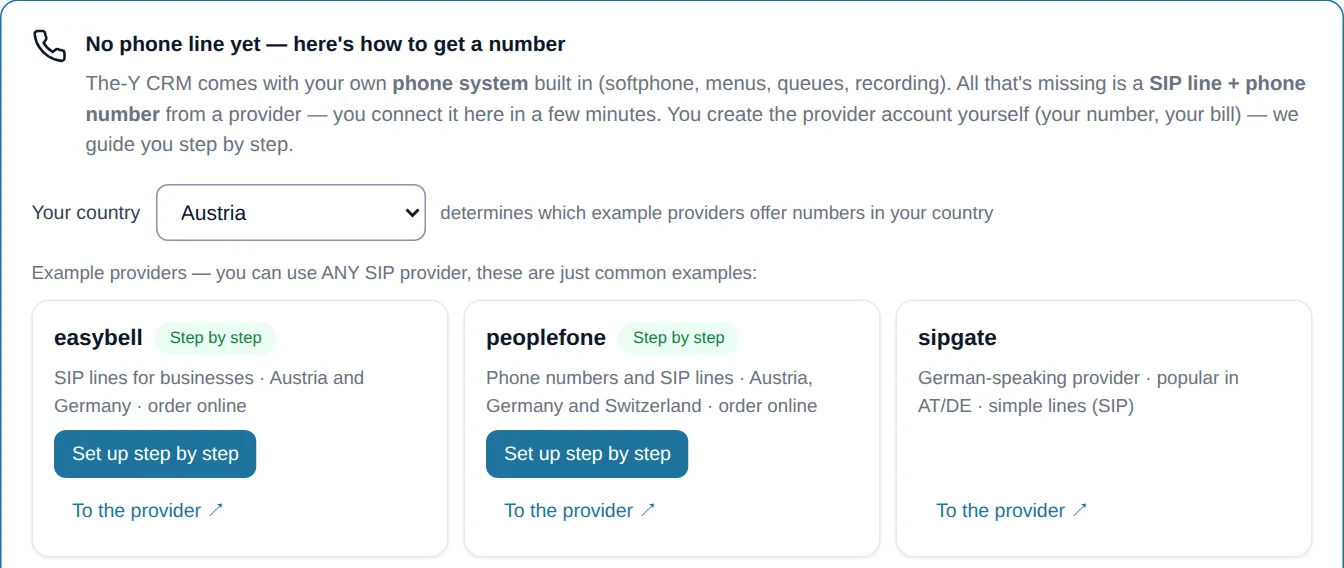
Fill in the form like this:
| Field | What to enter | Note |
|---|---|---|
| Name | e.g. peoplefone or peoplefone Vienna | your choice, required |
| Provider | peoplefone | fills in server, port and country code and shows the steps “peoplefone – how it works” |
| SIP server | the server from “SIP Setup” | If the portal shows a different server than the form, use the one from the portal. Only the name: no sip:, no port, no spaces. Required. |
| Port | 5060 | leave as is |
| SIP user / login | the user from “SIP Setup” | best to copy and paste, required |
| SIP password | the password from “SIP Setup” | stored encrypted and not shown again |
| Country code | 43 for Austria | 49 Germany, 41 Switzerland. When you dial 0664 …, the CRM turns it into +43 664 …. |
| Emergency calls on this line | “Automatic (recommended)” | Below it, you see what the line dials, e.g. “112 → +43112”. More under Emergency calls. |
| Caller ID number | leave empty | You set the number people see at peoplefone (Outgoing). |
| Register with the provider | on | already ticked – please leave it on |
| Active | on |
Then click “Create”. The CRM says “Saved — will be applied to the system (≤1 min).”
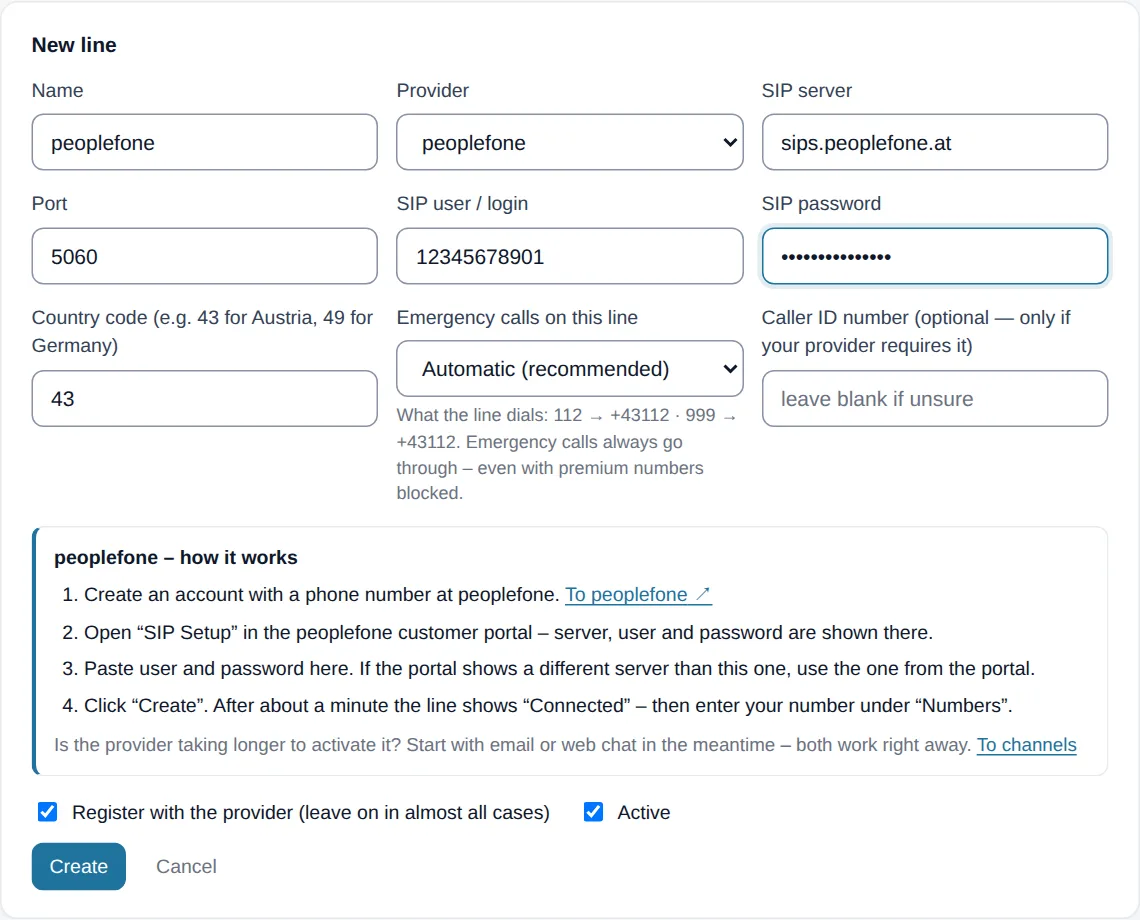
3. Check: does it say “Connected”?
The line now appears in the list “Your lines”. After about a minute the “Status” column should say “Connected”. The CRM checks every minute by itself.
| Shown | Meaning |
|---|---|
| Connected | peoplefone has accepted the registration. All good. |
| Connecting … | Registration is in progress. |
| Not in the phone system yet | The line is being applied. Wait a moment. |
| Not checked yet | There is no result yet. |
| Not connected | peoplefone rejects the line or does not answer. See Troubleshooting. |
| active / inactive | Clicking the badge switches the line off and on again. |
| ↗ Outgoing | Your outgoing calls use this line. |
| Checked: … | Time of the last check. |
If it doesn't say “Connected” after a minute, click “Check now”: the CRM registers the line again and checks right away. If it still doesn't work, “Stuck? We'll set it up with you – free of charge.” appears – one click on “Yes, please help me” is enough. We only get details about the account and the error, never passwords.
4. Create an extension (if there isn't one yet)
For a call to ring anywhere, everyone who should answer needs an extension. A new account doesn't have one yet.
- Settings → Phone → Extensions & devices → Extensions.
- “Create for all team members” → “Continue”. Everyone gets an extension from
100upwards. Or create a single extension. - The phone in the browser (bottom right) signs in with it by itself. It must say “Registered”. If it says “Off here”, untick “Don’t sign in the phone in this browser” under Calls → My phone. The browser must be allowed to use the microphone.
5. Add your phone number: where does a call go?
- Settings → Phone → Provider & numbers → Numbers (“Numbers – where do calls go?”).
- Under “Phone number (international, with +)”, enter your peoplefone number, e.g.
+43 1 …. If you type it nationally with0, the CRM suggests the right format (“Use …”). - Under “Label (optional)”, e.g.
peoplefone– the label later appears in the call list next to every call to this number. - Click “+ Number”. The new number takes over the target of your main number, or your own extension. If there is neither, it says “Hang up” with a yellow note – then you choose the target yourself.
- Under “Incoming call →”, choose the target and click “Save”:
- one person: “Extension (agent)” and the extension, e.g.
100 - several people: “Group call” – you create groups under Who answers? → Group calls, easiest with “Ring all extensions”. Set “If nobody is free” to a mailbox, so no call gets lost.
- other targets: menu (IVR), queue, phone hours (opening hours), voicemail or forwarding to a mobile. The phone assistant builds ready-made call routes.
- one person: “Extension (agent)” and the extension, e.g.
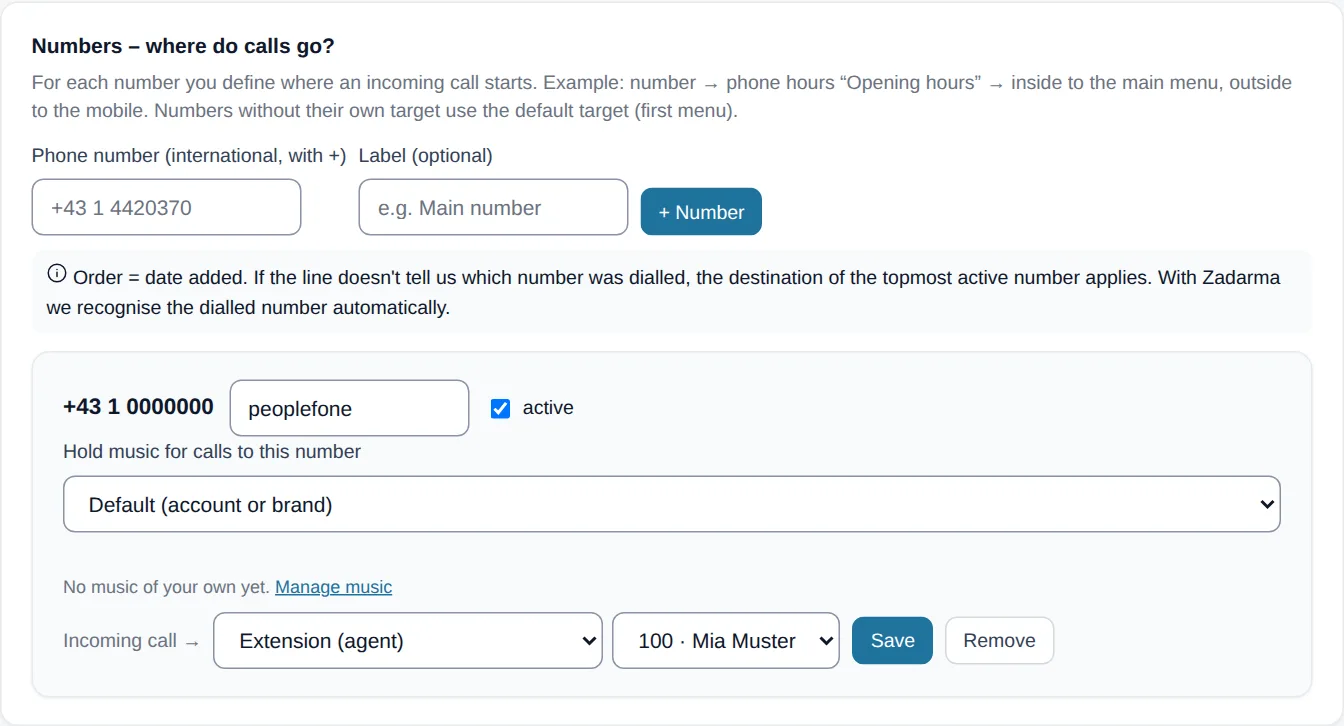
Several peoplefone numbers: with every call, peoplefone sends which number was dialled. The CRM recognises this by itself – so each number gets its own target (e.g. sales and service). Add each number separately. If the CRM ever doesn't recognise the dialled number, the target of the topmost active number applies (⭐ “Default without number detection”).
See the whole path: Call route & hours → Call route shows number → target as a picture, and the Overview shows “How a call flows” with hints if something is missing.
6. Test calls
- Incoming: below the line (Provider & numbers → Provider (line)), click “Make a test call” and call your peoplefone number from your mobile. The CRM shows whether the call arrives. The browser rings at the extension or group from step 5 – answer and talk briefly. Both sides must hear each other.
- Outgoing: in the phone at the bottom right, type your mobile number into “Number/extension” and click “Call”. Your mobile should show the number you set at peoplefone.
- Call list: both calls are listed under Calls. The incoming one says “to +43 1 … · peoplefone” – the dialled number with its label.
Outgoing calls and caller ID
- Main line: outgoing calls use the line with the “↗ Outgoing” badge. If peoplefone is your only line, it already is. If you have another one, click “Use for outgoing calls” on the peoplefone line. All active lines keep taking incoming calls.
- Several lines: in the phone, choose under “Call as” which line you call through. When you call a customer back from the call list or a conversation, the phone uses the number they reached you on. Which line belongs to a number is set at the number under “Outgoing calls with this number go via”. More in Several lines.
- Forwarding to a mobile and emergency calls always use the main line.
- How to dial: nationally with
0(e.g.0664 …) – the CRM adds the main line's country code – or internationally with+or00. Every number goes to peoplefone in international format with+. - Which number do people see? You set this in the peoplefone customer portal. According to peoplefone, the options are: no display (anonymous), a confirmed existing landline number or one of your peoplefone numbers (peoplefone: number display). Leave “Caller ID number” empty in the CRM. In our test, the person called saw the peoplefone number.
- Expensive special numbers (premium rate, directory enquiries, satellite) are blocked by the CRM depending on your settings, before the call reaches peoplefone – see Expensive special numbers.
Emergency calls
The CRM never blocks emergency calls (112, 133, 144, 122 …) – not even with premium numbers blocked or the limit of simultaneous calls reached – and sends them via the main line. “Automatic” dials with the country code in Austria, Germany and Switzerland, e.g. +43112. If the line should send the short code, set “Emergency calls on this line” on the line to “As a short code (e.g. 112, 999)” – the preview shows what is dialled.
Quick test in 20 minutes (checklist)
For anyone who wants to check the connection once from start to finish – for example before switching, or as a partner. You need a new Free account, a peoplefone SIP access with a number, and a mobile phone.
| # | Step | Expected | ✓ |
|---|---|---|---|
| 1 | Create an account at crm.the-y.at/register (approx. 2 min) | You are signed in to the CRM. | ☐ |
| 2 | Create the line as in step 2 | “Connected” after 1–2 minutes at most. | ☐ |
| 3 | Create an extension (step 4), phone at the bottom right | “Registered”. | ☐ |
| 4 | Phone number with target “Extension” (step 5) | “Saved — will be applied to the system (≤1 min).” | ☐ |
| 5 | Call the peoplefone number from your mobile | Rings in the browser, both sides hear each other. | ☐ |
| 6 | Call your mobile from the browser | Mobile rings, shows the number set at peoplefone, both sides hear each other. | ☐ |
| 7 | If you have a second peoplefone number: add it with a different target (e.g. voicemail) and call it | Each number goes to its own target. | ☐ |
| 8 | Set a key menu (Announcements & menus → Announcements & key menus) as the number's target, call and press a key | The key leads to the chosen target. | ☐ |
| 9 | Don't answer a call | Voicemail or fallback target answers; the call is listed as “missed”. | ☐ |
| 10 | Open Calls | All calls are listed, incoming ones with “to +… · label”. | ☐ |
Please don't test emergency calls. Questions, or something doesn't work? Write to office@the-y.at.
Troubleshooting
The line says “Not connected”
The CRM then says: “The provider rejects the line or does not answer. Check server, username and password.”
- Compare server, user and password exactly with “SIP Setup” – no spaces at the start or end.
- Enter the password again: on the line, “Edit” → type the password → “Save”. When editing, an empty password field means “unchanged”.
- Leave the port at
5060, then click “Check now”. - The CRM can't tell whether the password is wrong or peoplefone isn't answering right now. If none of this helps, click “Yes, please help me” or ask peoplefone.
A message appears when saving
- “Name, server and user are required.” – fill in the three fields.
- “Server: only a host name (e.g. sip.provider.com) or a public IP address – without “sip:”, port or spaces. …” – enter only the server name, and the port in its own field.
- “Another account already uses this server. Please turn on “Register with the provider” – then your calls are sure to reach you.” – perfectly normal with peoplefone, because many businesses use the same servers. Tick “Register with the provider” and save. The CRM then recognises calls by your own registration, so no account gets another account's calls.
- Badge “no password” in the list – edit the line and enter the password.
- “Checking is not possible right now: the phone system is not connected.” – wait a few minutes. If it stays like this, write to office@the-y.at.
A call doesn't come in
- Line: does it say “Connected” and “active”? If not, see above.
- peoplefone: does the number point to this SIP access in the portal? Is the same access also registered with peoplefone directly on a desk phone or in an app?
- Number in the CRM: is the number listed under “Numbers”, is “active” ticked and a target chosen? Without a target the CRM shows “Target missing – please choose one.”, with “Hang up” a yellow note.
- Nothing rings: no phone is signed in for the extension (browser closed, “Off here”, no app), the group is empty (“Group call … has no members – no phone rings.”) or the person is on a call – then the call goes to the fallback target or the caller hears “busy”.
- Overview: Overview → How a call flows and Call route show the path; hints take you to the right place with “Fix →”.
The call reaches the wrong target
Check that the dialled number is listed exactly like that under “Numbers” (with the country code). In the call list you see for every incoming call which number was dialled (“to +43 …”). If no number is shown, the target of the topmost active number applies (⭐).
Wrong caller ID or none at all
- Wrong line: did the call go out through your other line? Then it shows that line's number. Fix: “Use for outgoing calls” on the peoplefone line, or choose it under “Call as” in the phone.
- Setting at peoplefone: if number display in the customer portal is set to no display, the people you call see “anonymous”.
- “Caller ID number” in the CRM: if something is entered there, clear it (line → “Edit” → “Save”).
An outgoing call fails
- Check your credit or payment method at peoplefone.
- “Number not reachable” or “404”: usually the format. Dial nationally with
0or internationally with+. - Expensive special numbers: the call ends right away and costs nothing – setting under Overview → More phone system settings → Expensive special numbers.
- Free limit reached: the phone shows “Call limit reached (free) — upgrade for more.”
Technical details (for technicians)
| Item | Value |
|---|---|
| Phone system | Asterisk with PJSIP, servers in Austria (Vienna data centre), one system for all accounts, each account with its own lines |
| Connection | registration with the provider, UDP, port from the “Port” field (default 5060), no outbound proxy |
| Registration | user = authentication name = contact; valid for 3600 s and renewed before it expires; retry after 60 s, after a rejection (403) after 300 s |
| Incoming calls | assigned to the account through its own registration (registration with a line parameter) – so no account gets another account's calls, even when many accounts use the same peoplefone servers |
| Dialled number (incoming) | recognised as +43…, 43… (this is how peoplefone sends it) or as stored, otherwise via the CALLED_DID header; without a match the topmost number applies |
| Destination number (outgoing) | always E.164 with +, e.g. +43664… |
| Sender (From) | the SIP user, or the “Caller ID number” if one is entered; From domain = server; peoplefone sets the number that is displayed |
| Voice codecs to the line | G.711 A-law, G.711 µ-law |
| Keys (DTMF) | RFC 4733 (= RFC 2833, in the audio stream) |
| Encryption to the line | none (UDP, RTP). Desk phones and apps connect to the CRM encrypted (TLS, port 5061, SRTP). |
| Emergency calls | via the main line; “Automatic”: AT/DE/CH as +<country code><emergency number>, UK/IE as a short code; can be changed per line |
| Simultaneous calls | Free 2, Cloud Pro 10, Paid no plan limit |
Sources
- The-Y test with a peoplefone number, 13 Nov 2026: line to
sips.peoplefone.at, port 5060, with registration, “Connected”; incoming and outgoing call answered; dialled number recognised. - The-Y CRM 1.1.68.9: labels and behaviour taken from the user interface and the source code (as of 20 Nov 2026).
- peoplefone, “Display the phone number you want”: peoplefone.com (read 20 Nov 2026).
- peoplefone customer portal: portal.peoplefone.at (“SIP Setup”).