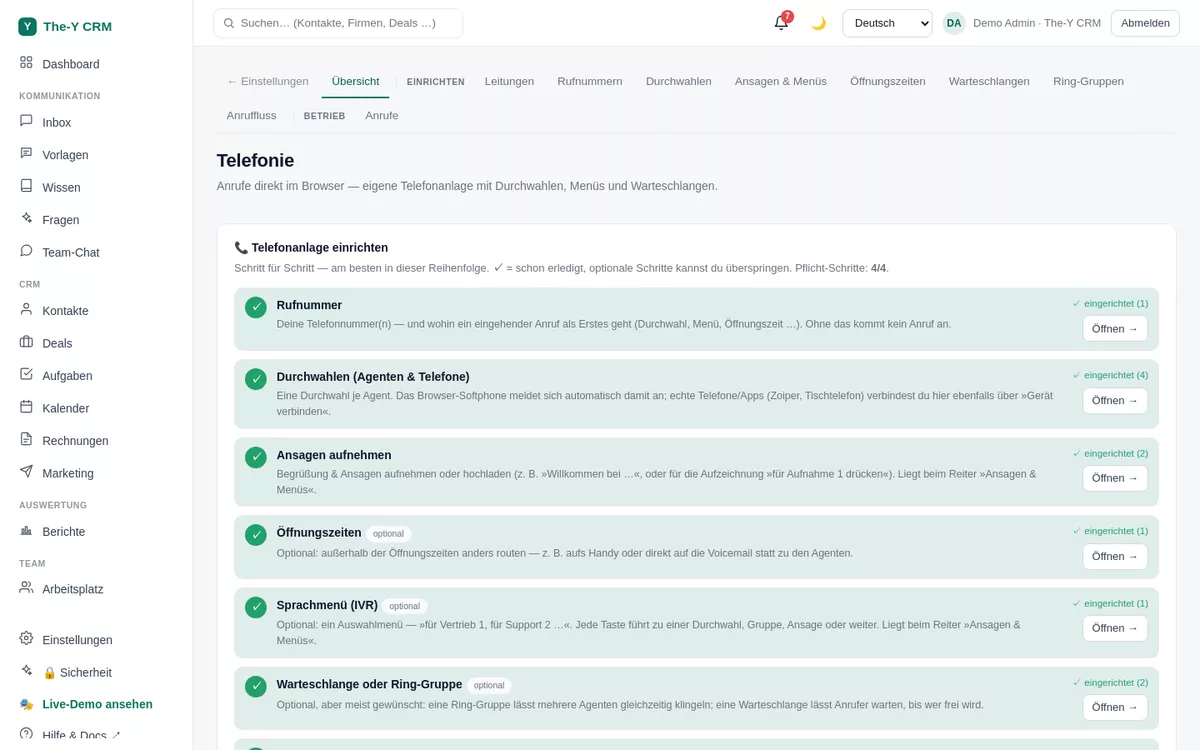
Set up telephony (SIP line, extensions, call flow)
The-Y ships a built-in phone system (no 3CX/third-party system needed). You connect a SIP line from your provider, call right in the browser (softphone), and build the call routing — menus, queues, voicemail — as a visual flow. All from inside the CRM.
⏱ line approx. 10 min · Permission: settings.manage (admin) · Free: 200 call minutes/month · Paid: unlimited
The telephony area — lines, extensions, call flow.
Before you start — what you need
An account with a SIP/telephony provider with a phone number and SIP credentials (server, user, password). We don't buy the number for you — it runs through your provider account (BYO), but we guide you step by step to the finished entry.
For purely internal tests (browser↔browser) you don't need a line — just extensions.
No provider yet? Under Telephony → Lines a guided helper shows suitable providers by country (e.g. Zadarma, sipgate for the DACH region, Twilio) with an explanation and a direct link.
Part A · Connect a SIP line (trunk)
Open Lines.Telephony → Lines. If you have no line yet, the guided provider recommendation appears.
Get a number + SIP details from the provider. Register a phone number there and note the SIP credentials (often "SIP settings" / "VoIP"): server/host, user/login, password.
Enter the line. "+ Add line" and fill in:
Provider/Server (e.g. sip.provider.tld) & Port (usually 5060)
User & password (stored encrypted, write-only)
Register (on/off) & country code (e.g. 43 for Austria)
Activate. Set the line to active. Outgoing calls (and incoming, once the number points to this SIP line at the provider) now run through your system.
Many providers expect numbers in +E.164 format (e.g. +4366012345678). "Number unreachable / 404" is usually a format issue — the system normalizes, but the provider side must accept the number in the right format. For incoming calls, link the phone number to your SIP line at the provider.
Part B · Extensions & browser softphone
Create extensions.Telephony → Extensions: one extension per employee, or "Create for all team members" (auto-numbered from 100). Optionally assign to a person.
Connect the softphone. The softphone at the bottom right automatically registers your own extension. With it you call right in the browser: answer, dial, hold, transfer (blind/attended), park.
Click-to-call & screen-pop. A click on a phone number in the CRM starts the call. For incoming calls the contact card pops up (screen-pop) with the 360° history — plus a ringtone + system notification, even when the tab is in the background.
Testing multiple agents = multiple browsers/logins (each registers its own extension). Connect a device (desk phone/app) via "Connect device" on the extension (SIP/UDP credentials).
Part C · Call flow (IVR, queues, voicemail)
Under Telephony → Call flow you build the routing as a visual flow — connect nodes, no technical knowledge required.
Announcements & menus (IVR): greeting + keys → destinations (extension, queue, forward to mobile, voicemail, another menu). Announcements via text-to-speech (neural voice), browser recording or upload.
Queues & ring groups: ring several agents (simultaneously/sequentially), with an overflow destination and hold music.
Time conditions: route differently inside/outside business hours.
Voicemail: enable per extension; messages land as audio in the inbox.
Call list, recording & wallboard
Calls: under Telephony → Calls you see answered/missed calls (in/out, duration, contact, "Open" → chat).
Recording: enable per IVR key (consent is built in by the user via an announcement, e.g. "press 1 for recording"); the recording is attached to the call.
Live wallboard: "🔴 Live" at the top of the calls page shows ongoing calls in real time.
Call consent: if a contact is unsubscribed from "call", click-to-call warns first.
Troubleshooting
The line doesn't register
Check server/port, user and password exactly as in the provider dashboard. Some providers require a specific realm/domain name. If registration is up but calls fail with "404", it's usually the number format (+E.164).
No audio / one-way audio
This is almost always NAT/firewall: the RTP ports (media) must be open/forwarded. On the hosted version (crm.the-y.at) this is done. When self-hosting, open SIP (5060/udp) and the RTP range (e.g. 10000–10200/udp) and enter the public IP in the system.
The softphone is stuck on "Connecting…"
Usually a hard browser refresh (Ctrl/Cmd+F5) is enough — the softphone then re-registers. Also check whether an extension is assigned to you.
Self-hosting: remote calls don't work
For real calls over the internet your server must be publicly reachable (public IP + open SIP/RTP ports). A pure home/NAT server is only suitable for local tests. Details in the server requirements.