
WhatsApp Business and personal WhatsApp on the same phone – 3 ways
Customers message your personal number – between the family group and the football chat, in the evening and on Sundays. You want to keep work and private life apart without carrying a second phone. This guide shows the three ways that actually work, with steps for Android and iPhone, their limits and the mistakes that cost you chats.
WhatsApp and WhatsApp Business run on one phone at the same time – but only with two different numbers. The same number cannot be active in both apps. The second number can be a second SIM or eSIM, a landline (Business app only), or you take the business number off your phone completely and answer it in a shared inbox. Two accounts in one app exist only in WhatsApp Messenger, not in the Business app.
Same number for both? What works and what doesn’t
These rules come from WhatsApp’s own help centre and apply to Android and iPhone.
| Question | Answer |
|---|---|
| Both apps on one phone? | Yes. WhatsApp and WhatsApp Business can run simultaneously. |
| Same number in both apps? | No. Each app needs its own number. |
| Two accounts in one app? | Only in WhatsApp Messenger: up to two accounts, on Android and, since March 2026, on iPhone too. Switching accounts is currently not available in the Business app. |
| Landline number? | Business app only. You get the code by phone call instead of SMS. |
| A second number on the same account? | No. One account has exactly one number. |
So “WhatsApp Business and personal on the same number” is not possible. What you can do instead: keep your current number for one of the two and give the other a new number – or move the business number into a shared inbox (way 3).
Way 1: Two apps, a second mobile number (dual SIM or eSIM)
- Insert a second SIM or activate an eSIM with your mobile provider. The number must be able to receive the code by SMS or call.
- Install WhatsApp Business from Google Play or the App Store. Your personal WhatsApp stays as it is.
- In the Business app, enter the second number – not your personal one – and type in the 6-digit code.
- Fill in the business profile: name, category, opening hours, address. Greeting and away messages are in the “Tools” tab.
- Put the new number wherever customers see it: website, email signature, Google profile, invoices.
Good: clean separation, and the Business app is free. Where it ends: you need a second mobile plan, and everything depends on one phone. If you are ill or on holiday, nobody answers – unless you link more devices (up to four, according to WhatsApp).
Way 2: Two apps, a landline for the business
If you already have a landline or office number, it can become your business WhatsApp number – no second SIM needed. The Business app runs on your phone, but the account is registered to the landline.
- Install WhatsApp Business and enter the landline number – without an extension.
- Instead of waiting for the SMS, choose the call option. If it isn’t shown yet, it appears once the SMS timer has run out; WhatsApp says this can take up to ten minutes.
- Answer the landline. An automated voice reads out the 6-digit code. Type it into the app – don’t guess, or WhatsApp locks registration for a while.
- Complete the profile and publish the number.
Watch out for phone systems: if the landline runs through a system with a greeting or menu, the announcement talks over the code. Route the number straight to a phone for this one call. Full guide with troubleshooting: WhatsApp Business with a landline number.
Way 3: Business number in a shared inbox – only personal WhatsApp on your phone
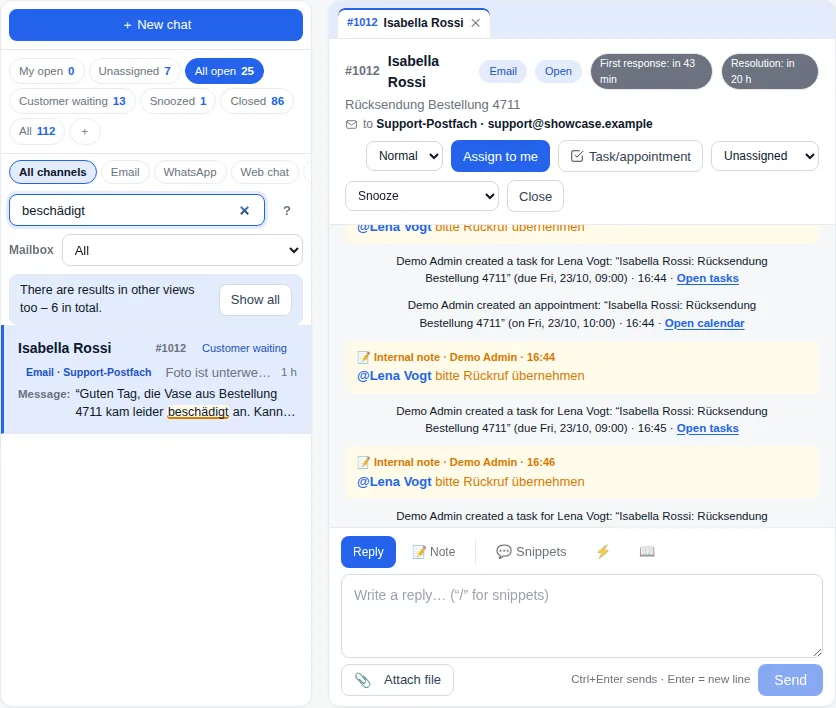
With the third way, the business number never goes into a WhatsApp app on your phone. It runs on Meta’s WhatsApp Business Platform in a shared inbox. You reply on a computer or in an app on your phone – and your personal WhatsApp is the only WhatsApp on the device.
- Connect a new number: the business number (mobile or landline) lives only in the inbox. That’s the cleanest separation.
- Keep the Business app: already using it? It can stay, and messages also arrive in the inbox – in The-Y CRM with up to 180 days of history imported. Then you separate the workplace, not the phone.
- Several people reply: every conversation has an owner, internal notes and a status. Holiday cover means reassigning the conversation.
- After hours: set opening hours and public holidays once; outside them an automatic reply goes out.
In The-Y CRM you connect the number under Settings → Channels → WhatsApp → “Connect WhatsApp”, in a window from Meta, in about 5–10 minutes. On your phone you add The-Y CRM to the home screen from the browser; only program files are stored there, never customer data. Guide: connect WhatsApp →
The three ways compared
| Way | You need | Costs | Personal kept separate? | Team can help |
|---|---|---|---|---|
| 1 · Second SIM or eSIM | Phone with dual SIM or eSIM, a second number | App free; second mobile plan | yes, two apps on one phone | via linked devices, no assignment |
| 2 · Landline | Landline without extension that accepts calls | App free; no second SIM | yes, two apps on one phone | via linked devices, no assignment |
| 3 · Shared inbox | Business number (mobile or landline), inbox on the WhatsApp Business Platform | Provider’s plan plus Meta’s per-message fees; The-Y CRM Free €0 for up to 3 users | yes – with a new number, only personal WhatsApp stays on the phone | yes: assign, internal notes, holiday cover |
Meta’s fees for a shared inbox: since 1 Oct 2026, the first 1,000 free-form replies per number per month are free; after that, each reply costs the service rate of the recipient’s country. Templates (messages outside the 24-hour window) are charged from the first message. Meta bills you directly. Rates by country: cost calculator.
Customers already have your personal number?
- Give the business a new number (way 1, 2 or 3) and send regular customers a short note once: “From now on, you can reach us for business at …”. Personal stays personal.
- Turn your current number into the business number and get a new personal one. On Android, the Business app asks whether it may take over your chat history (“Continue” → “Allow”). WhatsApp’s help centre doesn’t describe this step for iPhone – make a backup first. Contacts saved only inside WhatsApp don’t move over.
Going back works too: with a backup you switch to WhatsApp Messenger again. Data from Business-only features, such as the catalogue, doesn’t come along.
Common mistakes that cost chats
- Registering the same number in the second app. The other app loses it. Decide first which number goes where.
- No backup before switching. Back up (Google account or iCloud) before every move between the apps.
- Guessing the code. Wrong codes lock you out for a while. A new attempt can restart the waiting time; it can’t be sped up.
- Landline with an extension. WhatsApp needs a number without an extension.
- Phone menu during the code call. The greeting covers the code. Route the number straight to a phone for the call.
- Business number as a second account in WhatsApp Messenger. Technically possible, but you lose the business tools such as the business profile and away message, and landlines don’t work there at all.
Which way fits you?
The app is enough if …
- you reply on your own, or two of you at most,
- your phone has dual SIM or eSIM (way 1), or you have a landline that accepts calls (way 2),
- an away message for the evening is all you need.
Use a shared inbox if …
- several people answer the business number,
- business WhatsApp shouldn’t be on your personal phone at all,
- email, phone and Instagram should land in the same place,
- you want a holiday without handing over your phone. To be fair: The-Y CRM is Alpha software; if you need long-proven software today, also look at the alternatives.
Frequently asked questions
Can I use WhatsApp and WhatsApp Business on the same phone?
Yes. Both apps run at the same time on Android and iPhone, but each needs its own number. The second number can be a second SIM, an eSIM or, for the Business app, a landline.
Can WhatsApp Business and personal WhatsApp use the same number?
No. According to WhatsApp’s help centre, one number can’t be active in both apps at once. You can move a number from one app to the other; on Android the Business app offers to take over the chat history.
Does WhatsApp Business work without a second SIM card?
Yes, with a landline. Landlines work only in the Business app: you request a call and an automated voice reads out the 6-digit code. Or you connect the business number to a shared inbox, so it doesn’t need to be on a phone at all.
Can I add a second account in the Business app?
No. According to WhatsApp, two accounts in one app are only available in WhatsApp Messenger, on Android and since March 2026 on iPhone too. Switching accounts is currently not available in the WhatsApp Business app.
What does the separation cost?
The Business app is free. Way 1 costs the second SIM plan, way 2 nothing extra. A shared inbox costs the provider’s plan plus Meta’s per-message fees; with The-Y CRM, Free is €0 forever for up to 3 users, and Cloud Pro costs €20 a month per company, all users and brands included (Alpha and Beta price; €40 from the Live release).
Business number off your personal phone?
Create a free account and connect your business number – or click through the inbox in the demo with sample data first. The demo is deleted after 24 hours.
Prefer to do it together? We set it up with you by video call – in your browser, nothing to install. Mon–Fri 10–12 and 14–17 (Vienna time).
WhatsApp Business with a landline · WhatsApp Business with multiple users · Shared inbox · Omnichannel customer service · All comparisons · What The-Y CRM really costs
Sources
- WhatsApp Help Center, accessed 7 Nov 2026: both apps at the same time · multiple accounts · one number per account · landlines in the Business app only · registering a landline · moving to the Business app · moving back to Messenger · linked devices
- Two accounts on iPhone: WhatsApp blog, 26 Mar 2026, accessed 7 Nov 2026
- The-Y CRM: Connect WhatsApp (keep the app, new number, landline) · App on your phone · Meta’s prices from 1 Oct 2026 and plans: costs page · open points in the Alpha: Known issues
WhatsApp is a trademark of WhatsApp LLC / Meta. Information to the best of our knowledge; please report errors to office@the-y.at and we’ll correct them right away.