
Shared inbox: who read the email – and who is answering it?
Three people can open info@. An email is marked as read – but did anyone reply? Or did two of you reply at once? A shared inbox saves you forwarding emails around, but it doesn’t tell you who is dealing with what. This guide shows what Outlook and Gmail can do on their own, where they stop, and which simple rules help.
For a handful of emails a day, a shared mailbox in Microsoft 365 or Gmail delegation with clear rules is enough. Once emails get lost or answered twice, you need a team inbox: every email gets one person in charge and a status. In The-Y CRM that is free for up to 3 users – and WhatsApp and calls can join the same inbox later.
Distribution list, shared mailbox or team inbox?
| Distribution list | Shared mailbox (Microsoft 365) | Team inbox (e.g. The-Y CRM) | |
|---|---|---|---|
| How it works | An email to the list goes to every member. | Members open one mailbox next to their own. Replies can come from the shared address. | Every email becomes a ticket with a number in one shared list. |
| Person in charge | not built in | not built in | one person per email, visible in the list |
| Status | no | no “open” or “waiting for the customer” | open, snoozed, closed; views like “Customer waiting” |
| Double replies | nothing stops them | nothing stops them | “Lena is typing …” and a request not to reply twice |
| Sent replies | – | in your own Sent Items by default; an admin can change this | in the ticket, right below the customer’s message |
| Other channels | email only | email only | WhatsApp, web chat, Messenger, Instagram and calls in the same list |
| Cost | set up in the Microsoft 365 admin center | no licence of its own up to 50 GB; every member needs a licensed Exchange Online mailbox | The-Y Free €0 for up to 3 users; Cloud Pro €20/month per company, all users and brands included |
Microsoft details from Microsoft Learn, accessed 6 Nov 2026 (sources at the end of the page).
Shared mailbox in Outlook (Microsoft 365): set it up in 5 steps
- Sign in to the Microsoft 365 admin center with an Exchange admin role.
- Go to Teams & Groups → Shared mailboxes and select “+ Add a shared mailbox”. The name you enter sets the email address; you can edit it.
- Select “Save changes”. It can take a few minutes before you can add members.
- Select “Add members to this mailbox” and pick the people who should use it.
- Members close and restart Outlook. With automapping, which is on by default, the shared mailbox then appears on its own.
Fix the “Sent Items” problem: by default, a reply you send from the shared mailbox lands in your Sent Items, so your colleagues can’t see it. According to Microsoft, an admin changes this in Exchange PowerShell:
set-mailbox <mailbox name> -MessageCopyForSentAsEnabled $True
set-mailbox <mailbox name> -MessageCopyForSendOnBehalfEnabled $True
The first line is for emails sent as the shared mailbox, the second for emails sent on behalf of it.
Shared inbox in Gmail and Google Workspace
- Delegation: in Gmail on a computer, open Settings → See all settings → Accounts and Import (or Accounts). Under “Grant access to your account”, click “Add another account”, enter the address and confirm with “Next Step” and “Send email to grant access”. A delegate can read, send and delete emails; when they send, their own email address appears. Personal Gmail allows up to 10 delegates, work or school accounts up to 1,000. In a company, your admin may need to turn delegation on first.
- Collaborative inbox (Google Groups): a group owner or manager turns on the collaborative inbox features. Members with the right permission can then take or assign a conversation and mark it as complete, no action needed or a duplicate.
- Gmail add-ons: tools like Hiver turn Gmail into a help desk, so your team never leaves Gmail.
Where a shared mailbox stops
- Read is not done: “read” doesn’t tell you who read it or who is replying.
- No status, no person in charge in Outlook: there is no “open” or “waiting for the customer”. Whoever takes an email has to tell the others.
- Not for big teams: Microsoft names a maximum of 25 users per shared mailbox. With too many people at once, you can get connection failures or duplicated messages.
- Anyone can delete: according to Microsoft, you can’t stop members from deleting emails in a shared mailbox.
- Only your organisation: people outside your company can’t get access.
- Email only: WhatsApp, calls and the website chat run somewhere else.
How a team inbox fixes this
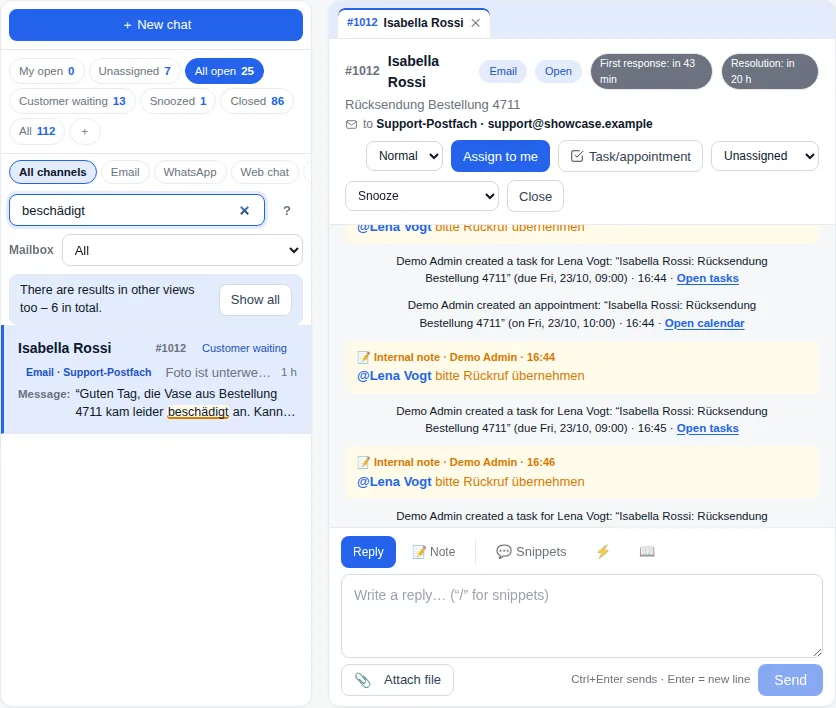
In The-Y CRM, every email to info@ becomes a ticket with a number. This is what changes day to day:
- One person in charge: pick a person or click “Assign to me”. If you like, the CRM hands out new emails in turn to everyone who is available, or by workload.
- Views instead of searching: My open, Unassigned, All open, Customer waiting, Snoozed, Closed – each with a counter.
- No double replies: the ticket shows “Lena is looking” or “Lena is typing …”, and above the reply box a request not to reply twice.
- Agreements stay in the ticket: internal notes are only for your team. Type “@” to bring in a colleague – they get a notice.
- Several mailboxes: info@ and support@ land in the same inbox. Each ticket shows which mailbox the customer wrote to, and your reply goes out from there. You can filter by mailbox.
- Cc, Bcc and forwarding: since 1.1.58, a reply goes to whoever wrote last. You see the recipients above the reply box and can change them. Cc, Bcc and “Reply all” work when replying and in new emails, with up to 20 recipients per email. Forward any email in a ticket, attachments included; the forward shows up in the history, and replies land in the same ticket. Guide
- Signature per mailbox: placeholders like
{{user.firstname}}are filled with the name of the person who is writing. - Nothing gets stuck: if you switch it on, the team lead gets a notice when a new conversation gets nobody, or when nobody has replied after a set time.
Connect your mailbox in 4 steps
- Create a free account on crm.the-y.at.
- Microsoft 365 or Outlook.com: click “Connect with Microsoft” – no password needed. A shared mailbox works if your account has full access to it. Gmail: with an app password. Every other provider: via IMAP/SMTP.
- Choose “New mail only” for a clean start, or “Full history” to bring in your existing inbox.
- Send a test email. After about a minute it is a ticket in the inbox.
Step by step, with a table of server details: Connect an email mailbox.
Rules for a shared inbox – print them out
- Every email has exactly one person in charge.
- Whoever takes an email shows it right away – not only when replying.
- Agreements go into a note on the email, not into a forward.
- Done means answered and closed, not just read.
- Once in the morning and once in the afternoon, someone checks “Unassigned”.
- Nobody deletes customer emails. Finished ones get closed.
Customers also write on WhatsApp?
The same inbox takes WhatsApp, web chat, Instagram, Messenger and calls, with one history per customer. If WhatsApp is your main channel, start here: WhatsApp team inbox and WhatsApp Business with multiple users. All channels together: Omnichannel customer service.
When another tool is the better choice
You don’t need an extra tool if …
- only a handful of emails arrive each day and you sort things out in the office,
- everything should stay inside Gmail – then a Gmail add-on like Hiver fits better; The-Y CRM works in its own interface, not inside Outlook or Gmail,
- you only need email and want to host it yourself – see FreeScout,
- you need software with a long track record – The-Y CRM is Alpha (Known issues).
A team inbox pays off when …
- emails get lost, or two people answer at once,
- customers also write on WhatsApp or call,
- you want to see who replies how fast.
Frequently asked questions
What is a shared inbox?
An inbox that several people work from, usually for an address like info@ or support@. In Microsoft 365 that is a shared mailbox; in Gmail it is delegation or a Google Groups collaborative inbox. A team inbox tool adds a person in charge and a status to every email.
What is the difference between a shared mailbox and a distribution list?
A distribution list sends each email to all members, so everyone gets their own copy. A shared mailbox keeps one mailbox that all members open, and replies can come from the shared address. Neither shows who is dealing with an email.
Why are sent emails missing from the shared mailbox?
In Microsoft 365, an email you send from a shared mailbox is saved in your own Sent Items by default. According to Microsoft, an admin can change this in Exchange PowerShell: set-mailbox with -MessageCopyForSentAsEnabled $True and -MessageCopyForSendOnBehalfEnabled $True.
Can I connect a Microsoft 365 shared mailbox to The-Y CRM?
Yes. Since version 1.1.50 you connect Microsoft 365 and Outlook.com with one click. Shared mailboxes work if your account has full access. Gmail works with an app password, all other providers via IMAP/SMTP.
What does a team inbox cost with The-Y CRM?
Free costs €0 forever for up to 3 users. Cloud Pro costs €20 a month per company, all users and brands included, on servers in Austria (Vienna data centre). Self-hosted from €10 a month. Email has no extra cost. These prices apply during Alpha and Beta; Cloud Pro costs €40 a month from the Live release. All costs are on the costs page.
See the team inbox for yourself.
In the demo you click through views, assignment and notes with sample data – no sign-up, everything is deleted after 24 hours.
Prefer to do it together? We set it up with you by video call – in your browser, nothing to install. Mon–Fri 10–12 and 14–17 (Vienna time).
Help desk software · Omnichannel customer service · Live chat for your website · WhatsApp team inbox · The-Y CRM overview · What The-Y CRM really costs
Sources
- Microsoft Learn: About shared mailboxes · Create a shared mailbox · Sent mail is not saved · Distribution lists, accessed 6 Nov 2026
- Google: Gmail delegation · Collaborative inbox in Google Groups, accessed 6 Nov 2026; Hiver: hiverhq.com, accessed 6 Nov 2026
- The-Y CRM: Inbox · Inbox for teams · Connect email · costs page
Microsoft 365, Outlook, Exchange, Gmail, Google Workspace, Google Groups, Hiver and FreeScout are trademarks of their respective owners. Information to the best of our knowledge; please report errors to office@the-y.at and we’ll correct them right away.