Connect Facebook & Instagram to The-Y CRM
You want to answer messages to your Facebook Page (Messenger) and to your Instagram account (Instagram Direct) in the CRM – in the same inbox as email, WhatsApp and web chat? This page shows step by step how to connect your Page and the linked Instagram account. One click on “Connect Facebook & Instagram” opens a window from Meta. Your Page and account stay in your own business portfolio, and you don't have to type or copy anything.
Contents: 1. What you need · 2. Step by step in the CRM · 3. Step by step in the Meta window · 4. What happens next · 5. When it gets stuck
1. What you need
- A Facebook Page for your company and a personal Facebook account that manages this Page. You log in with this account in the Meta window. Your customers never see it.
- No Facebook Page yet? You create it right in the Facebook window (“Create new Facebook Page”) – a name and a category are enough. Nothing to prepare.
- For Instagram: a professional account (business or creator) that is linked to your Facebook Page. In the Instagram app, “Allow access to messages” must also be on. Where to change this is in section 5.
- A Meta business (business portfolio): if you don't have one, Meta creates it for you in the window.
- The permission “Manage settings” (admin) in the CRM.
- A computer with Chrome or Edge. Connect on a computer if you can, not on your phone.
2. Step by step in the CRM
- Open Settings → Channels. Under “Add a channel”, click the tile “Facebook & Instagram” (You need: the Facebook login that manages your page · approx. 5–10 min).
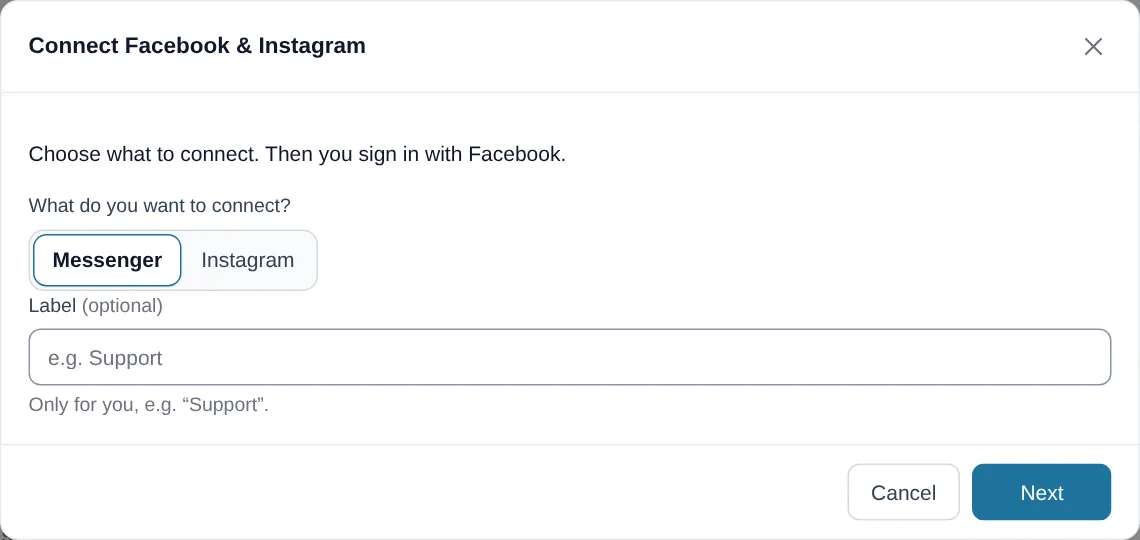
- In the window “Connect Facebook & Instagram” the CRM asks “What do you want to connect?”: Messenger (your Facebook Page) or Instagram. If an Instagram account is linked to the Page, the other one is added automatically (see section 4). With “Instagram” you can only pick Pages that have a linked Instagram account.
- Under “Label” you can enter a name just for you, e.g. “Support”. This is optional. Then click “Next”.
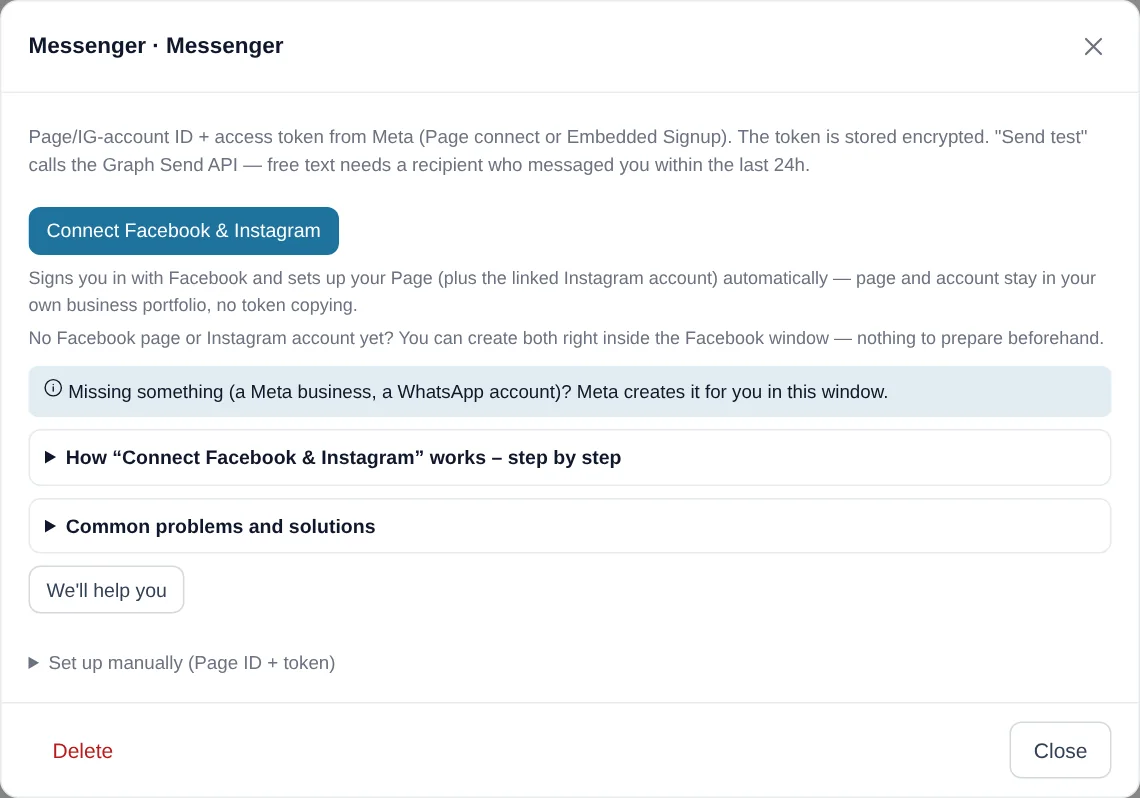
- The CRM creates the channel and opens its window. At the top, one sentence explains what happens (since 1.1.78): once connected, messages to your Page – or direct messages to your Instagram account – arrive here in the inbox and you reply right from the CRM, up to 24 hours after the person's last message (Meta's rule). Click “Connect Facebook & Instagram” there. The Meta window opens.
- Below the button you find the same steps to expand (“How “Connect Facebook & Instagram” works – step by step”), “Common problems and solutions” and the button “We'll help you”.
- “Set up manually (Page ID + token)” further down is for experts. You don't need it for the normal way. Since 1.1.78 the technical details (Page ID, access token) are only there.
Continuing later? The new channel is in the list “Connected” with “Still missing: access details”. “Configure” opens its window again.
3. Step by step in the Meta window
The window belongs to Meta. Its labels come from Meta and can change.
- Log in: log in with the personal Facebook account that manages your Facebook Page and confirm “Continue as …”.
- Choose your business: choose your Meta business (business portfolio). Don't have one? Meta creates it for you here.
- Choose your Facebook Page: tick the Page whose messages should come into the CRM. Tip: only select the Pages you really want to connect. No Page yet? “Create new Facebook Page” – a name and a category are enough.
- Choose your Instagram account: choose the Instagram account linked to this Page. It must be a professional account (business or creator).
- Confirm permissions: leave the switches on and click “Save” or “Confirm”.
- Back in the CRM: if you shared exactly one Page, it continues by itself. With several Pages you see “Choose a Page” – click “Select” next to the right one. Then it says “Connected ✓” with the name of the Page and, if linked, the Instagram name (@…).
4. What happens next
- Two channels from one click: the Facebook Page (Messenger) and the linked Instagram account are both created as channels. If you chose “Messenger”, the Instagram account is added; if you chose “Instagram”, the Page is added. If no Instagram account is linked, you only get the Messenger channel. If there already is a channel for the Page or the account, it is only updated, never created twice.
- In the list “Connected” under Settings → Channels you then see one row for the Page and one for Instagram (with the @ name). If a channel was added, the page reloads after a few seconds. When everything works, the column “Status” says “Running”.
- Messages in the inbox: new messages to your Page and to your Instagram account land in the shared inbox. You reply there. Meta allows replies up to 24 hours after the customer's last message.
- Try it: send your Page a message from another Facebook account, and your Instagram account a message from another Instagram account. It shows up in the inbox. If the page does not reload after connecting, the CRM waits up to 5 minutes for this message under “Does it arrive?” and then says, for example, “There it is – the first message to your page has arrived.”
- Welcome and conversation starters: in the Meta hub (Settings → Channels → More settings) you set up the Messenger welcome, conversation starters, the menu and the Page info for your Page, and conversation starters for Instagram Direct.
5. When it gets stuck
The “Connect Facebook & Instagram” button stays grey – or the box “Your browser isn't loading the Facebook login” appears
The button only becomes clickable once your browser has loaded Facebook's sign-in script (from connect.facebook.net). Some settings hold it back. This usually helps:
- Edge: click the lock icon to the left of the address, turn off “Tracking prevention for this site” and reload the page.
- Ad blocker or privacy extension: pause it for crm.the-y.at and reload the page.
- Otherwise: try Chrome or another network, e.g. your phone's hotspot. Some company networks block Facebook.
Since version 1.1.77.1 the CRM shows a box with these steps, “Try again” and “Yes, please help me” instead of a grey button. The box appears after about 8 seconds and starts with “Your browser isn't loading the Facebook login – that's why the buttons can't be clicked.” The link “Detailed guide” in it leads to this page.
The Meta window does not open or stays empty
- Allow pop-ups: allow pop-ups for crm.the-y.at (icon on the right of the address bar) and click “Connect Facebook & Instagram” again.
- Log in to Facebook first: log in on facebook.com in the same browser, then try again.
- Turn off ad blockers for crm.the-y.at and allow cookies from facebook.com.
- Ideally use Chrome or Edge on a computer, not your phone. If it doesn't work in Edge, try Chrome.
Meta says: no permission, account too new or too many businesses
In the Meta window, log in with the Facebook profile that is an admin of your business portfolio (Meta Business Suite → Settings → People). Turn on two-factor authentication for Facebook (Settings → Password and security). Pick your existing business portfolio instead of creating a new one. Meta often doesn't accept brand-new Facebook profiles yet – then let a person with an older profile who is an admin connect.
“No Facebook page found”
You didn't share a Page in the Meta window, or you don't have one yet. Here's how:
- Click “Connect Facebook & Instagram” again.
- In the window, under “Page”, pick “Create new Facebook Page” – a name and a category are enough.
- Select the Page and click “Next” through to the end – it will then show up in the CRM to choose.
I chose the wrong Facebook Page
Click “Connect Facebook & Instagram” again and choose “Edit settings” or “Change selection” in the Meta window – tick the right Page there. If needed, remove “The-Y CRM” in Facebook under Settings → Business integrations and connect again.
My Instagram account is not shown
Instagram must be a professional account linked to your Facebook Page. In the Instagram app: Settings → Account type and tools → “Switch to professional account”. Then link Instagram on your Facebook Page under Settings → Linked accounts and connect again in the CRM.
If you chose “Instagram” in the CRM, Pages without Instagram show “No Instagram account linked”, or the CRM says “This page has no linked Instagram business account.” Link the account first as described above.
Instagram messages are not coming in
“Allow access to messages” must be on in the Instagram app: Settings → Messages and story replies → Message controls → Connected tools → “Allow access to messages”. To test, write from another Instagram account, not from your own.
“Cancelled” or “Connection failed”
“Cancelled” means the Meta window closed before everything was confirmed. Just click “Connect Facebook & Instagram” again and go through all steps up to “Save” or “Confirm”. If you see “Connection failed” or another message, click “We'll help you” – the message is sent along.
“… already connected to another The-Y account”
The Page or the Instagram account is already connected to another The-Y account. Nothing was saved. Disconnect it there or write to us – we'll clarify who it belongs to.
We'll help you – free of charge
- “We'll help you” is right below “Connect Facebook & Instagram”. Write briefly what happened and click “Send request”. We only receive details about the account and the error, never passwords or access keys. The answer comes by email.
- “Set up together (free)”: on crm.the-y.at you find “Rather do it together?” with this button at the bottom of the card “Add a channel”, as long as we have free slots for setup help. One click is enough, we get back to you by email.
Sources
- The-Y CRM 1.1.77 and 1.1.77.1: labels and flow taken from the interface and the source code (as of 26 Nov 2026).
- The CRM itself describes the steps in the Meta window under “How “Connect Facebook & Instagram” works – step by step”. Meta can change the window at any time.
Facebook, Instagram and Messenger are trademarks of their owner. Information given to the best of our knowledge. Please report errors to office@the-y.at and we'll correct them right away.