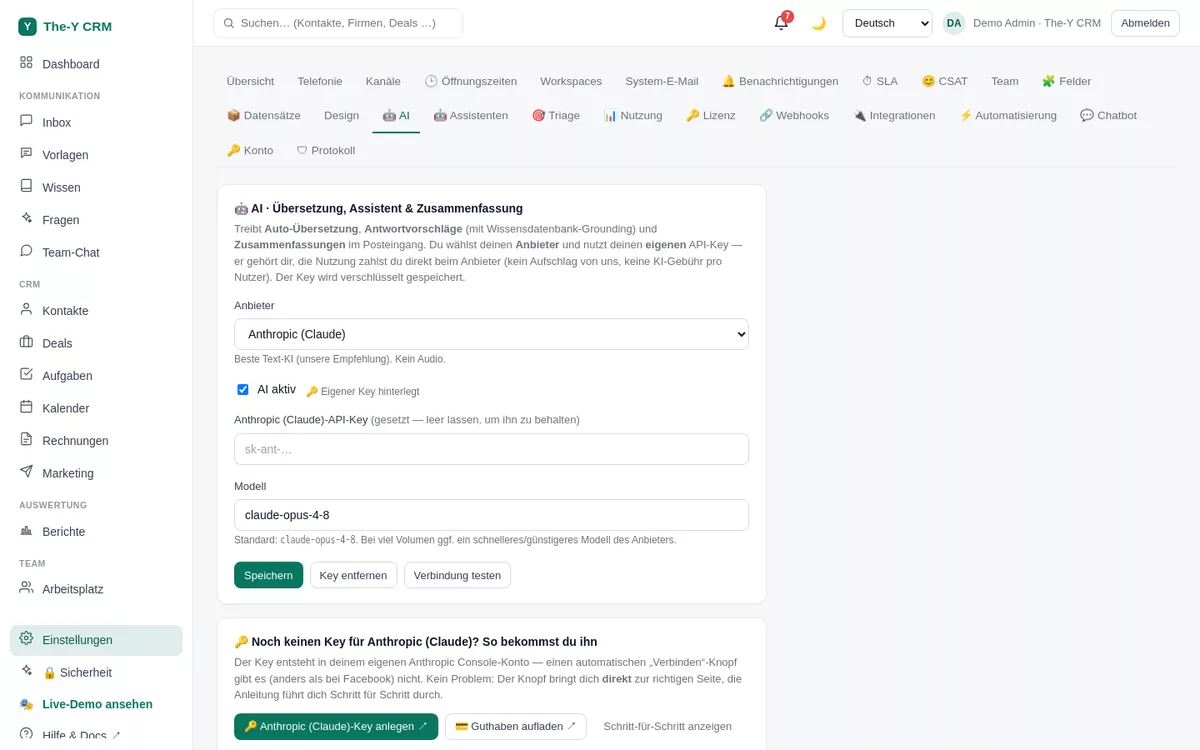
The-Y lets you choose your AI provider and charges no AI markup: you enter your own API key (Anthropic, OpenAI or Google) and pay usage directly with your provider at cost. Afterwards, the copilot, summaries, better translation and the knowledge-base deflection bot are available.
⏱ approx. 5 min · Permission: settings.manage (admin) · Free & Paid · optional (without a key, AI features simply stay off)
Settings → AI — choose a provider and enter the key.
Before you start — what you need
An account with one AI provider of your choice: Anthropic (Claude), OpenAI (GPT) or Google (Gemini).
Some credit / a payment method at the provider — otherwise the connection test fails with a balance message (that's not a The-Y error).
Privacy & cost: content used for an AI feature is sent via your key to your provider and processed there under their terms. The-Y is not in between and adds nothing on top. You choose the provider (EU residency possible depending on provider/region).
Step by step
Open AI settings. In the app, on the left Settings → 🤖 AI.
Choose the provider. In the dropdown select your provider (Anthropic / OpenAI / Google). Below it a guided help appears with a direct link to key creation + (if needed) to topping up credit at your provider.
Create the key. Via the link, generate an API key at the provider (see the table below) and copy it.
Paste the key. Paste the key into The-Y (it is stored encrypted). Optionally adjust the model — a sensible default model is pre-filled.
Tick "AI active" & "Test connection". The test makes a real mini call. Green = done. If credit is missing, the provider reports it directly (top up and test again).
Where do I get the key?
Provider
Create a key
Credit
Anthropic (Claude)
console.anthropic.com → Settings → API Keys → "Create Key" (sk-ant-…)
Settings → Billing (without credit the test fails)
OpenAI (GPT)
platform.openai.com → API keys → "Create new secret key" (sk-…)
Billing → credit/payment method
Google (Gemini)
Google AI Studio → "Get API key"
depending on project/billing in Google Cloud
The provider shows the key only once — copy it right away and keep it safe. In The-Y it is stored encrypted and never shown in clear text again.
What the AI can then do
Inbox: "💡 Suggestion" (a reply draft from the history, grounded in your knowledge base) and "📝 Summary" of a long ticket.
Translation: customer messages and replies into the respective language — better quality with your provider.
Custom AI agents (on the "Ask" page + as an inbox picker), auto-triage (category/sentiment/priority) and the KB deflection bot in the WebChat.
Keeping costs in check
Since you pay the provider directly, you have full cost control via their dashboard. In The-Y you can optionally set a monthly spend limit for AI (protects your own budget). The platform itself never spends money on your AI.
Troubleshooting
The connection test reports "no key"
No key is saved (yet), or "AI active" is not ticked. Paste the key, tick the box, test again.
Error on test despite a correct key
Usually credit is missing at the provider (especially Anthropic/OpenAI). Top up in the provider dashboard or add a payment method and test again. The error text comes straight from the provider.
The AI buttons don't appear in the inbox
Without an active key the AI buttons are hidden on purpose (nothing breaks). Once "AI active" is on and the test was green, "💡 Suggestion" and "📝 Summary" appear.